- Jul 14, 2024
How to Create Digital Products With Canva
- Aneatra
- Tools & Resources
- 0 comments
📣 Share this on: Pinterest • Facebook • LinkedIn • Telegram • Blusesky • X
Balancing family, work, and the ever-elusive personal time can feel like a high-wire act! But what if there was a way to ease some of that financial pressure while still being there for every precious moment?
Well my friend, that's where digital products come into play! And I'll continue to shout it from the rooftops until the cows come home, lol! So in this post, we're getting into how to create digital products with Canva, taking you step-by-step from signing up for an account to designing your very first product.
I'll also answer your questions like... Can you sell products you created with Canva? Can you sell digital products from Canva on Etsy? What are popular Canva digital products to sell?
Ready to do this thing? Grab and drink, and let's go!
Why Choose Canva for Creating Digital Products?
Because digital products offer a fantastic opportunity to earn passive income while enjoying more free time with your family. And Canva makes this process incredibly easy and fun!
Here’s why Canva is the PERFECT tool for mompreneurs starting their online business journey:
Ease of Use: Canva’s drag-and-drop interface is super intuitive and beginner-friendly, allowing you to create beautiful designs without any prior experience or expensive college degrees.
Versatility: With Canva, you can create a wide range of digital products such as eBooks, templates, guides, and more. This includes physical products as well. I always feel like a kid in a candy store in there! 😋
Professional Quality: Even if you’re not a designer, Canva’s high-quality templates and design elements ensure your products look professional and polished. It's hard to make a crappy design unless done on purpose!
Affordability: You get access to loads of amazing templates, designs, and features with a free account and you can upgrade to Pro for more premium goodness at just $15 per month.
Getting Started with Canva
Creating a Canva account is the first step to unleashing your creativity. Here’s how to get started:
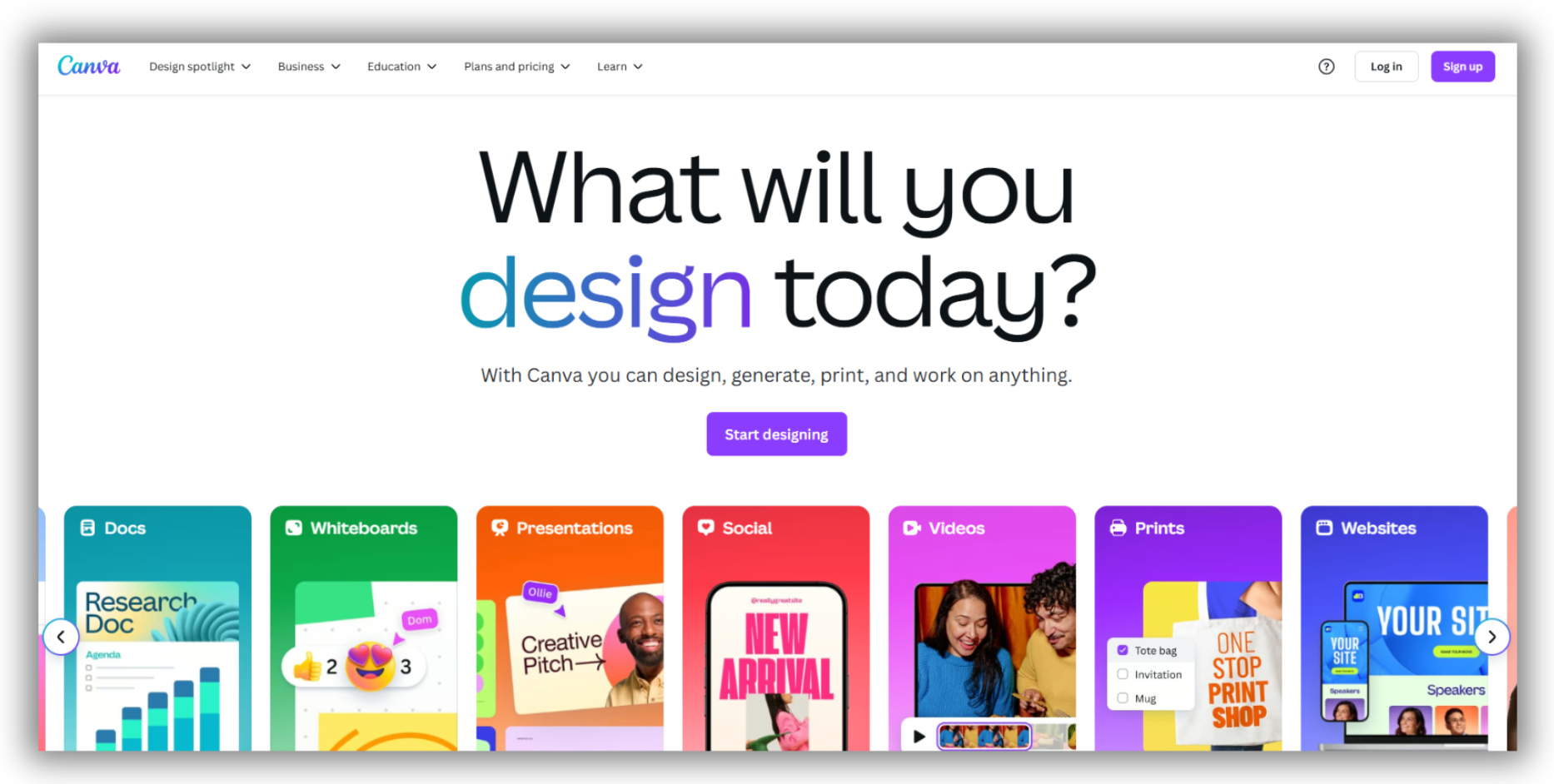
Creating an Account: Visit Canva’s website and sign up for a free account using your email, Google, or Facebook account.
Exploring Canva’s Features: Once you’re in, take a tour of the dashboard. Familiarize yourself with the templates, design elements, and the drag-and-drop editor.
Your next step is to check out their templates. Canva has a massive library of templates for all types of digital products! Use the search bar to look for templates that fit your needs. Whether you’re creating an eBook, a planner, or a social media graphic, there’s a template for you.
Then once you've found a template you like, click on it to open it in the editor. Change the text, colors, fonts, and images to match your brand and style. Canva’s easy-to-use tools make customization a breeze.
And if you're not sure what to create first, popular digital products like eBooks, templates, and planners are great starting points. So we're going to focus on eBooks today because they're a fantabulous way to share your knowledge or stories and generate passive income!
How to Create an eBook with Canva
Before diving into the design process (my favorite part), you need a clear plan in place for your eBook.
Here are a few preliminary steps to help you get started:
1. Brainstorm Topic Ideas: Think about the topics that resonate with your audience. For example, if your audience consists of busy moms, you might consider topics like time management, meal planning, or self-care tips. Look at frequently asked questions in your niche or browse forums, social media groups, and blog or YouTube comments for inspiration. Make a list of potential topics and narrow it down to one that you’re passionate about and that aligns with your audience’s interests.
2. Research Your Topic: Before committing to a topic, ensure there’s interest and demand. Use tools like Google Trends, Answer the Public, or even a quick search on Amazon to see what’s trending. Check out similar eBooks or resources in your niche and identify any gaps you can fill. For instance, if you’re writing about starting a home business, research what questions people have about it and include actionable solutions in your eBook.
3. Write Your eBook First: Instead of designing directly in Canva, draft your eBook content in a Word DOC beforehand. Outline your chapters, write your sections, and edit thoroughly. This approach allows you to focus on your message without worrying about the design elements yet. Once you’re happy with the content, it’s much easier to copy and paste it into Canva’s template. Writing in advance also helps you ensure your eBook is structured logically, with a clear introduction, body, and conclusion.
Now we can move on to the fun part, designing your eBook! 🙌🏽
4. Choose an eBook Template: Search for “eBook” in Canva’s template library to find a design that resonates with your theme and audience. For instance, if your eBook is about productivity, look for clean and minimalist templates. If it’s a recipe book, opt for colorful and visually engaging templates. Pay attention to the number of pages and layout options included—this helps to make sure the template works with your content. You can always add or remove pages when needed though.
5. Add and Format Text: Replace the placeholder text with your own content by clicking on the text boxes. Use Canva’s text tools to customize fonts, sizes, and colors. For example, use bold headings to make key sections stand out and ensure your paragraphs are easy to read by choosing a clear font like Arial or Open Sans. Keep text alignment consistent. You can use centered for titles and left-aligned for body text to maintain a professional look. Consider also using callout boxes or quotes to highlight important points or tips.
6. Incorporate Images and Graphics: Enhance your eBook by adding visuals from Canva’s extensive library. Drag and drop relevant images, icons, or illustrations into your design. For instance, if your eBook is about fitness, include images of workouts or motivational graphics. Use Canva’s photo editing tools to adjust brightness, contrast, and crop images for a cohesive look. Stick to a consistent color scheme for icons and graphics to align with your brand or eBook’s theme. To avoid clutter, balance visuals with white space, ensuring your content remains the focus.
7. Export Your eBook: Once your design is finalized, click the Share button in the top right corner and select Download. Canva offers PDF options like Standard or Print. Choose the Print option for higher quality if you plan to distribute physical copies. Before sharing it with your audience, preview your eBook to check for errors or inconsistencies in layout, text, or images. If everything looks good, save the file with a descriptive name, such as "Ultimate Guide to Remote Work" to make it easy for your audience to identify.
You can even create a template link for your eBook or download it as an image file or video. These options provide flexibility depending on how you intend to use and share your eBook. Canva makes it simple to ensure your digital products are accessible and professional, no matter the format.
You Can't Go Wrong With This Platform
All of my digital products are made with Canva! From eBooks to templates and planners, Canva's intuitive design tools and extensive template library have been indispensable.
I’ve created and customized professional-grade products quickly and easily, allowing me to spend more time with my family while running a successful online business. You too can achieve this balance by leveraging their amazing platform for your business or side hustle!
And it really doesn't take long to learn how to create digital products with Canva.
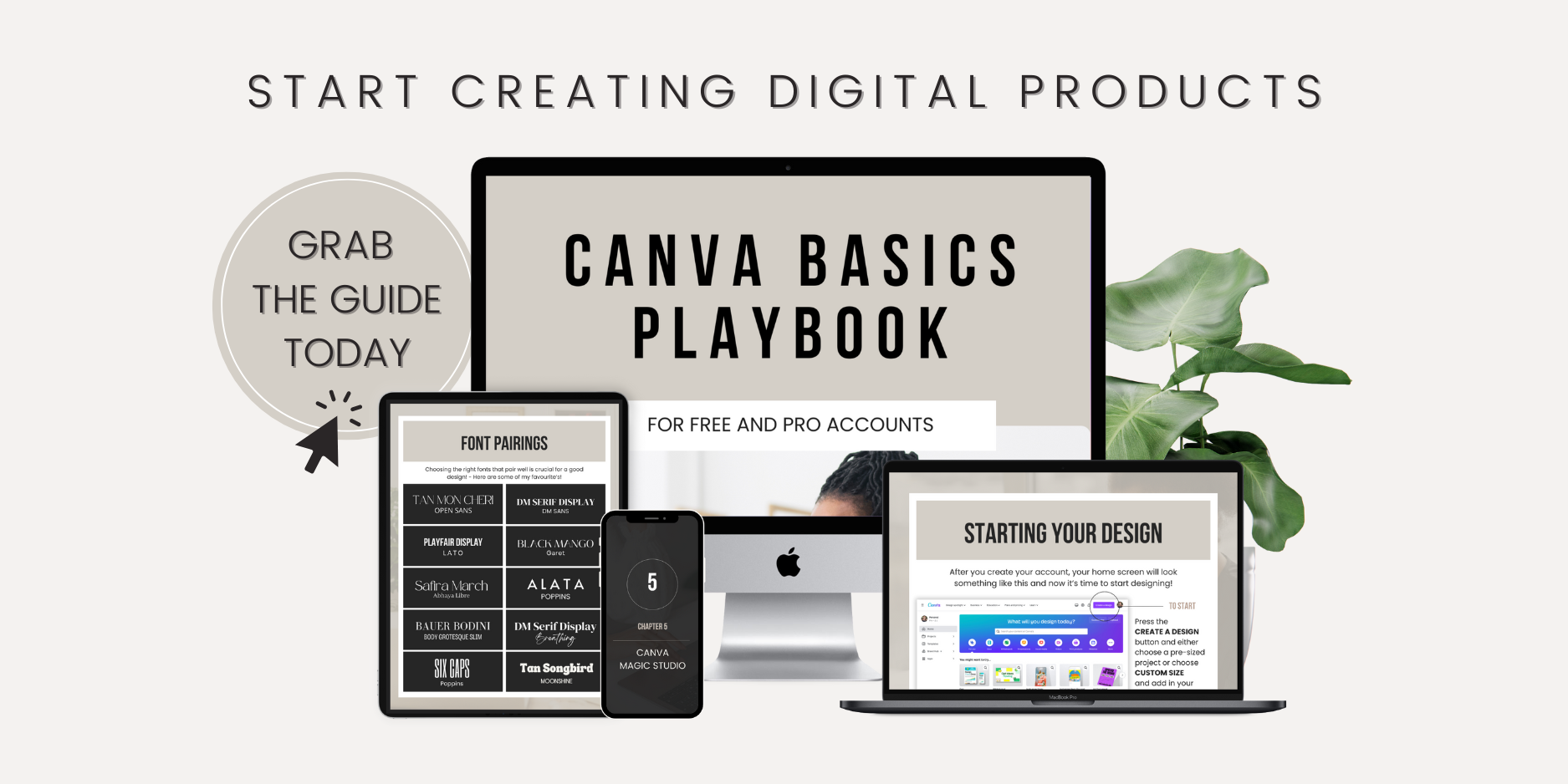
I even have a quick and easy guide to help you get started! You can also rebrand and resell it for 100% profit.
Additional Tips for Using Canva
Collaboration Features: Canva allows you to collaborate with others, making it easy to work with partners or get feedback from friends and family.
Canva Pro: While the free version of Canva IS powerful... Canva Pro offers additional features such as access to a larger library of templates, elements, and tools for branding and customizing your designs.
Learning Resources: Canva also provides numerous tutorials and resources to help you master its features. So take advantage of them along with the Canva Basics Playbook to level up your design skills.
Avoiding Common Pitfalls
Creating digital products can be a rewarding experience, but there are a few common pitfalls to avoid:
Quality Over Quantity: Focus on creating high-quality products that provide real value to your audience rather than churning out a bunch of mediocre ones.
Consistent Branding: Maintain a consistent look and feel across all your products to establish a strong brand identity. Without this, it can be hard to stand out from the crowd and establish a connection with your audience.
Affordable Pricing: Keep your digital products under $100 so they're easily accessible to everyone. Otherwise, you could lose out on sales due to pricing out your audience.
Selling Your eBook Online
Now that your eBook is ready, it’s time to start selling it! Here are two popular platforms to consider:
Podia is an all-in-one platform designed for creators. It allows you to sell digital products, offer memberships, and even host online courses. You don’t need any technical skills to get started, and it handles everything from payments to delivery. It’s user-friendly and perfect for bundling products or offering upsells. Plus, you can build a sales page directly on Podia, complete with testimonials and a checkout process. I run my entire business on this amazeballs platform which includes this blog!
Etsy is a well-known marketplace with a built-in audience looking for unique products. It’s ideal for creative entrepreneurs and has strong search engine visibility. It’s affordable, charges low listing fees, and gives your eBook exposure to millions of potential buyers without requiring you to drive traffic from scratch.
Pro Tip: You can sell your eBook on both platforms simultaneously to maximize sales and reach different audiences!
RELATED CONTENT:
Start Your Digital Product Business Today
Creating digital products with Canva is a fantastic way to earn passive income while enjoying more time with your family. The process is surprisingly simple, lots of fun, and truly rewarding. So to recap...
Sign up for a free Canva account
Explore their templates to see what all is available
Create eBooks, templates, planners, etc.
Learn more from their helpful resources and my playbook
By following these steps, you'll learn how to create digital products with Canva, making it easy and fun to design professional-quality products that can generate passive income. Dive in and start exploring the endless possibilities Canva offers. Soon you'll be on your way to financial freedom and more precious memories with your family.
Ready to get started? Sign up for a Canva account today and begin creating and selling digital products. Share your experience or drop questions in the comments below. Let's support each other on this exciting journey!
More Goodness For Your Journey
If you enjoyed this blog post, here are more supportive resources to help you on your way!
Work From Home
Learn how to find remote jobs, avoid scams, and more so you can finally begin to work from home!
Online Business
Get simple strategies to earn passive income and build financial freedom for you and your family.
Tools & Resources
Discover the best tools and resources to simplify your remote work or online business journey.
Hi, I'm Aneatra!
The owner and creative juice behind Remote Beginnings. I've also been blessed to work from home and grow my online business for the past 20 years. This is how I learned the ins and outs of earning a living remotely. You can learn more about me here.
Now I'm on a mission to help you do the same... Escape the grind, strengthen your family ties, and enjoy more freedom! No more having to choose between providing for your family or spending time with them when there's room for both.